With this update we are moving to a new and better theme, and we are solidifying our Layout Switch app to include several layouts.
A new theme
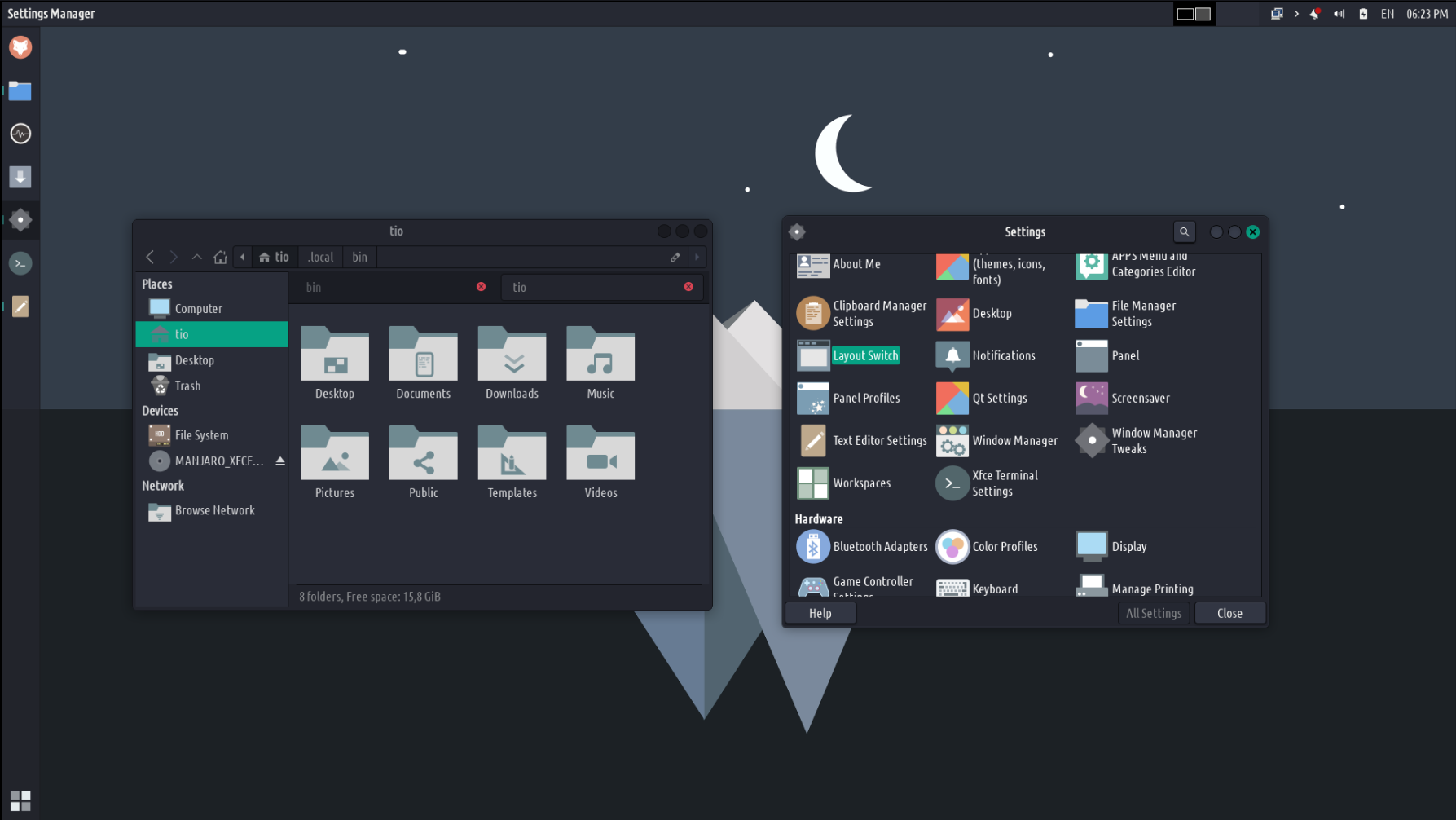
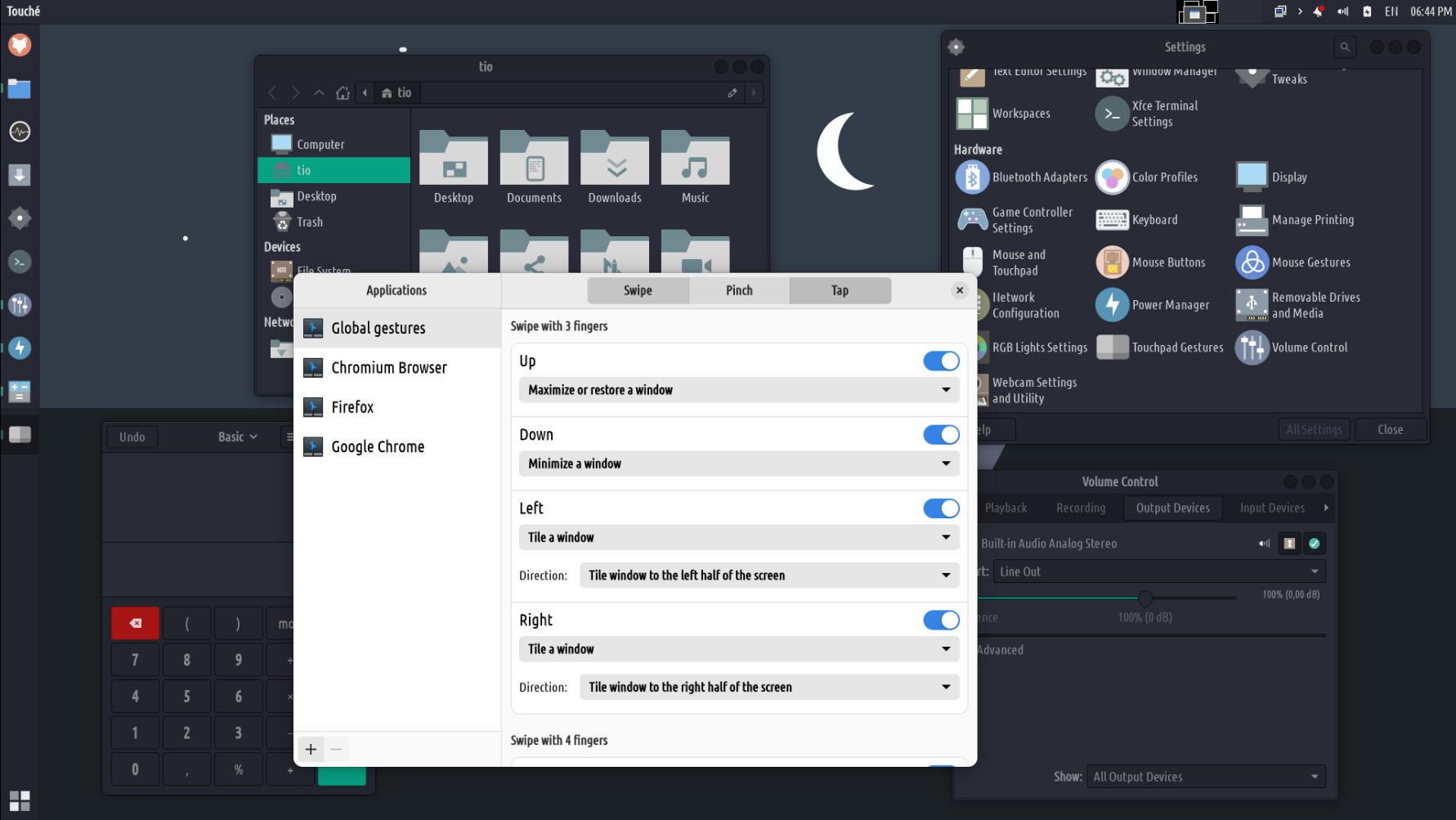
This is how TROMjaro looks like now:

image1787×1006 166 KB
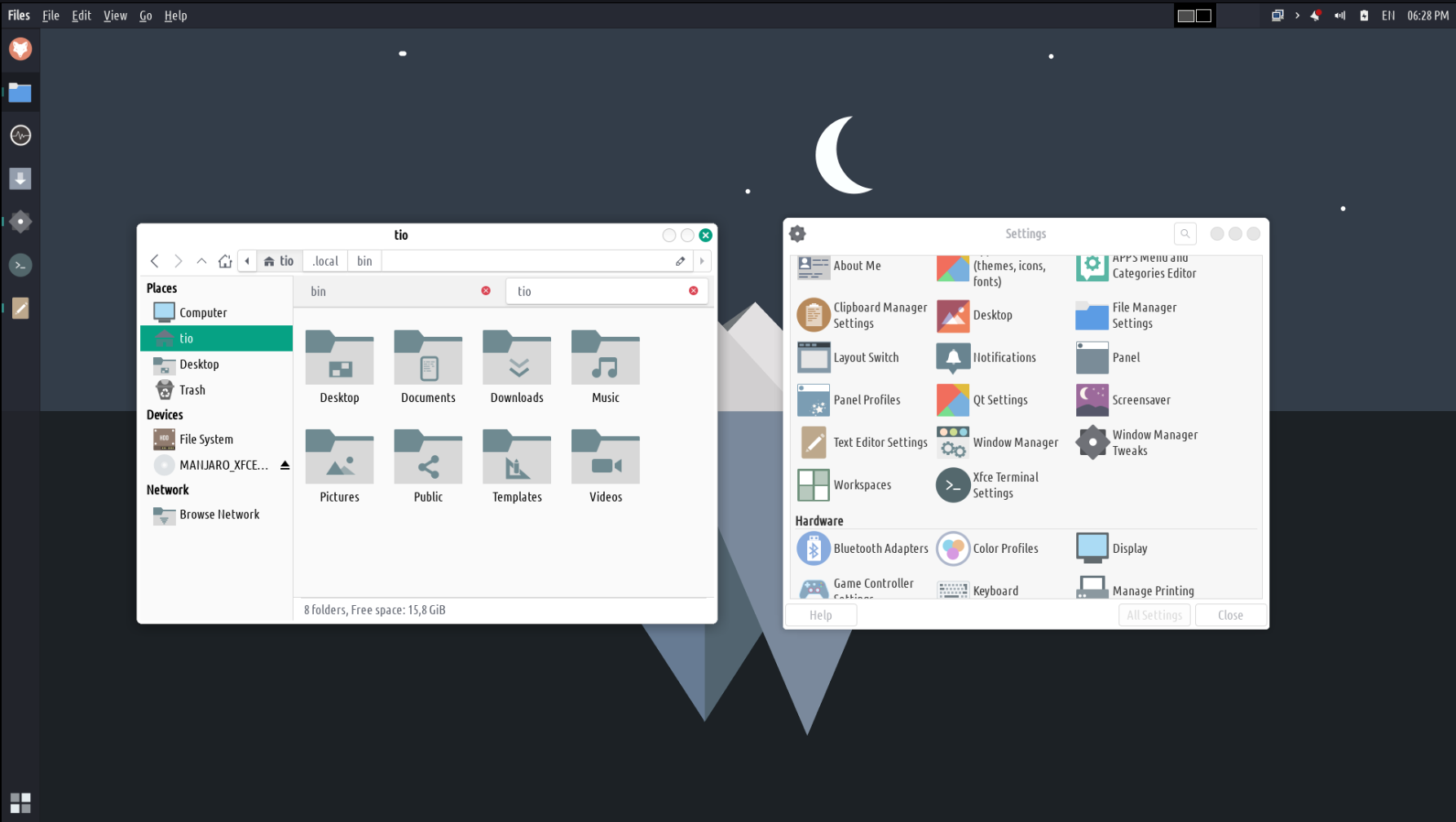
This is the first time we are changing the default theme. From the beginning we have used the Vimix theme - more info here Vimix Theme – TROM-Jaro - and although the theme is great, it lacks proper support for XFCE and so certain elements were not properly designed, such as save/import windows for certain apps. It was also looking a bit outdated and “boring”. The new theme is called Skeuos and you can install it from the Add/Remove Software or from our library here Skeuos Theme – TROM-Jaro . This theme has a much better design, and buttons or other elements are nicer overall and stand out more. Here it is with the light version:

image1786×1008 159 KB
It has some 10 variations of colors, so as many options as the Vimix theme in that regard.
So if you too want to change to this new theme, install it, then select the Skeuos Dark Green theme from Appearance and also from Window Manager.
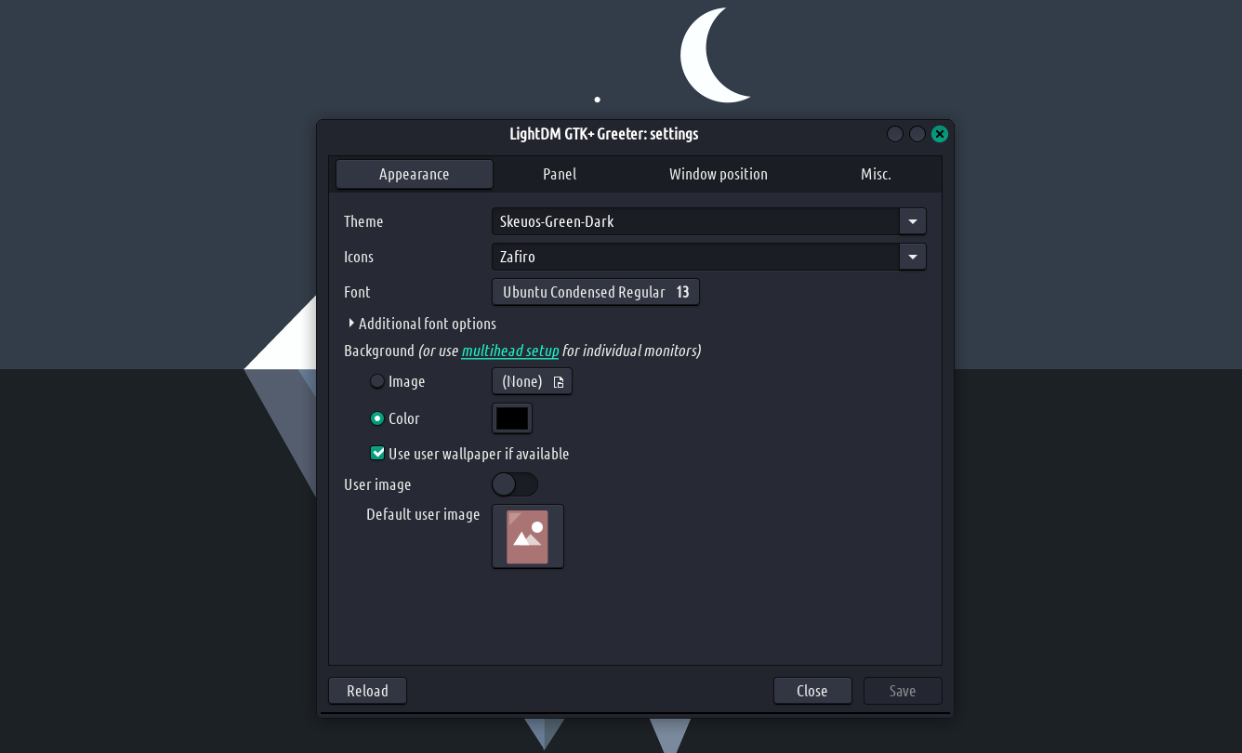
You can also change the login screen theme via Lightdm:

image1242×753 68.3 KB
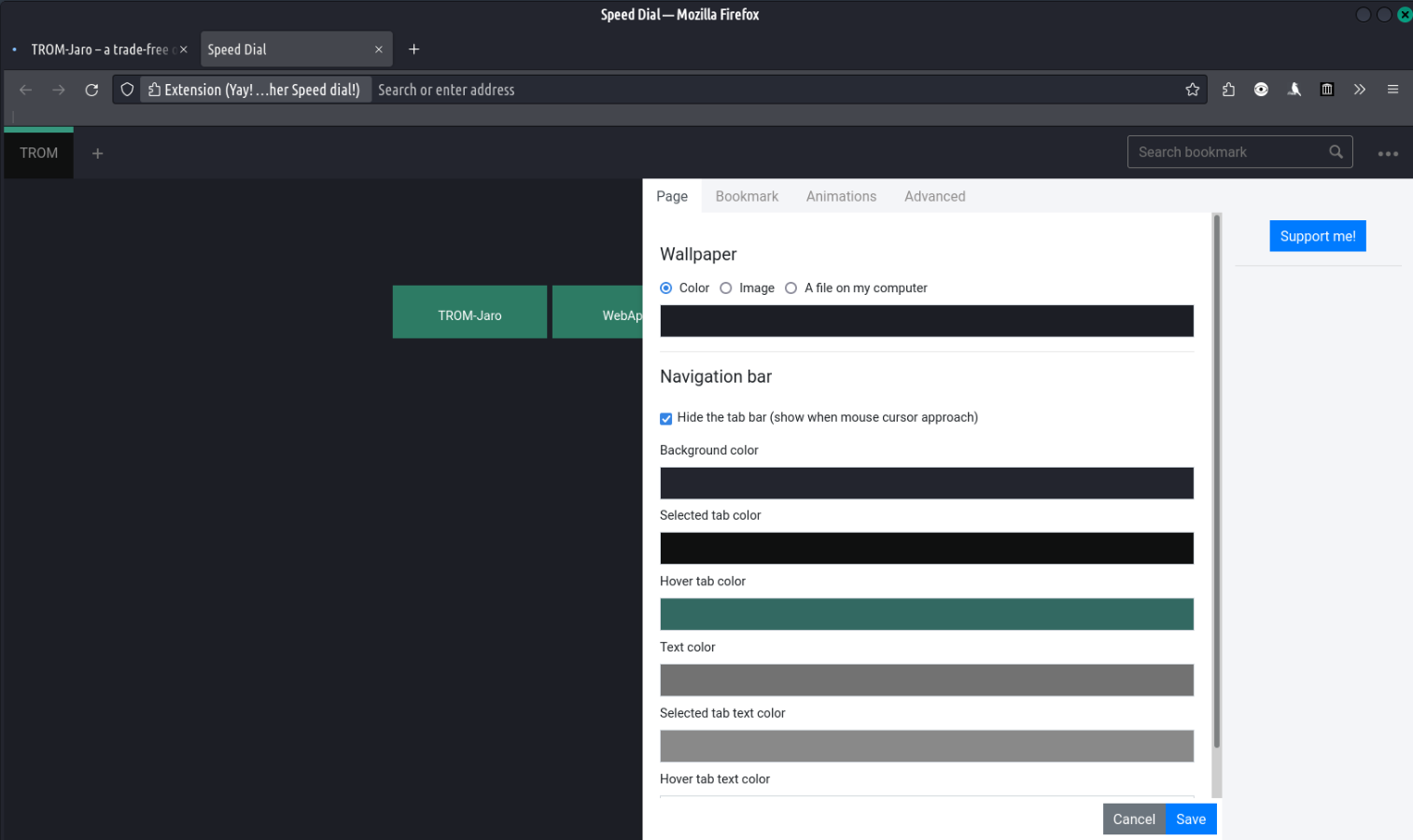
We’ve also changed a bit the theme for Firefox’s new tab to match the system’s theme:

image1514×900 79.9 KB
Now if you also use the virtual keyboard then let’s make that one match our new style too. Open the Virtual Keyboard Settings and select this theme:

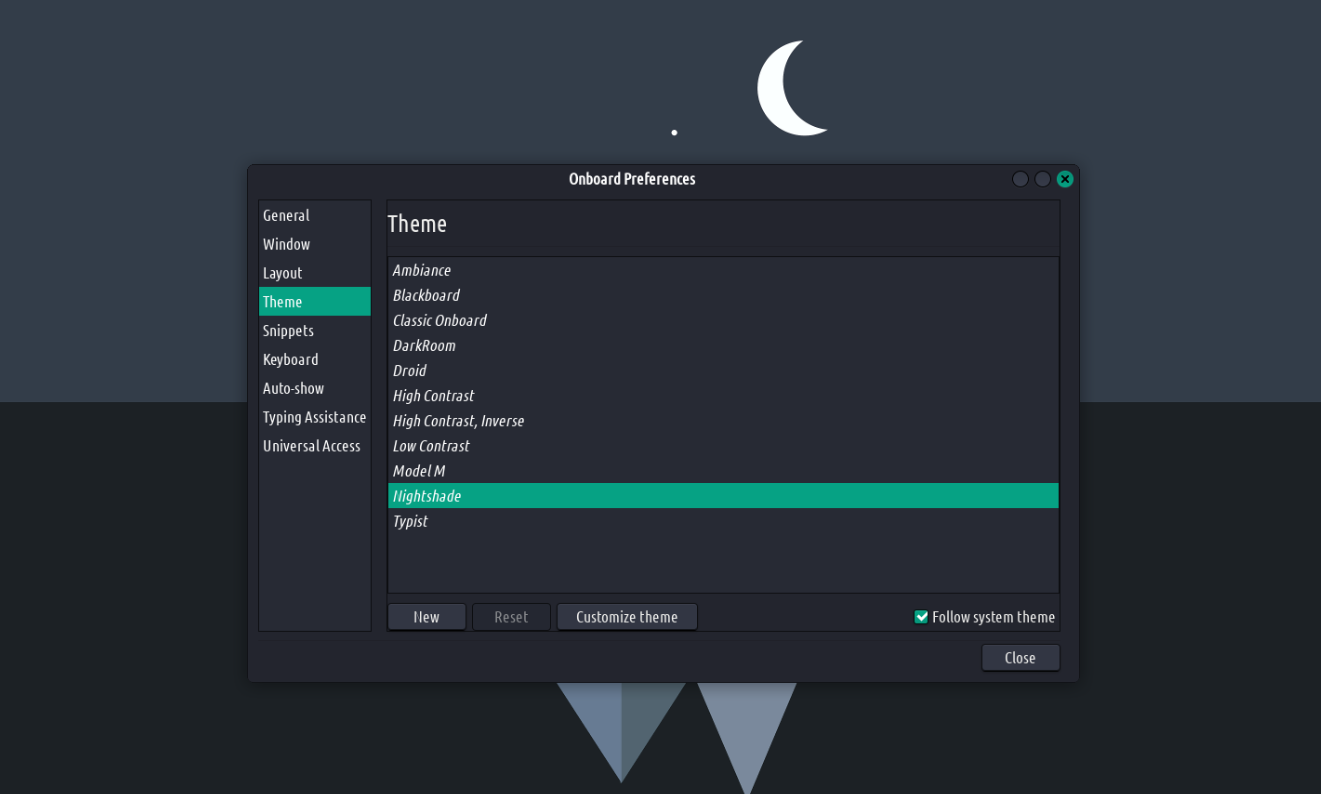
image1321×794 64 KB
Lastly you can change the HUD theme too. Go to File System, then /usr/share/rofi/themes/ and open as root the file tromjaro.rasi. Replace all of its insides with this:
<pre><code class="lang-auto">/* ==========================================================================
Rofi color theme
Based on the Gruvbox color scheme for Vim by morhetz
github.com/morhetz/gruvbox
File: gruvbox-dark-soft.rasi
Desc: Gruvbox dark (soft contrast) color theme for Rofi
Author: bardisty <b@bah.im>
Source: github.com/bardisty/gruvbox-ro…
Modified: Mon Feb 12 2018 06:04:37 PST -0800
========================================================================== */
* {
/* Theme settings */
highlight: bold italic;
scrollbar: true;
/* Gruvbox dark colors */
gruvbox-dark-bg0-soft: #1a1d23;
gruvbox-dark-bg1: #292c37;
gruvbox-dark-bg3: #32876f;
gruvbox-dark-fg0: #ffffff;
gruvbox-dark-fg1: #ffffff;
gruvbox-dark-red-dark: #cc241d;
gruvbox-dark-red-light: #fb4934;
gruvbox-dark-yellow-dark: #d79921;
gruvbox-dark-yellow-light: #fabd2f;
gruvbox-dark-gray: #5ba58e;
/* Theme colors */
background: @gruvbox-dark-bg0-soft;
background-color: @background;
foreground: @gruvbox-dark-fg1;
border-color: @gruvbox-dark-gray;
separatorcolor: @border-color;
scrollbar-handle: @border-color;
normal-background: @background;
normal-foreground: @foreground;
alternate-normal-background: @gruvbox-dark-bg1;
alternate-normal-foreground: @foreground;
selected-normal-background: @gruvbox-dark-bg3;
selected-normal-foreground: @gruvbox-dark-fg0;
active-background: @gruvbox-dark-yellow-dark;
active-foreground: @background;
alternate-active-background: @active-background;
alternate-active-foreground: @active-foreground;
selected-active-background: @gruvbox-dark-yellow-light;
selected-active-foreground: @active-foreground;
urgent-background: @gruvbox-dark-red-dark;
urgent-foreground: @background;
alternate-urgent-background: @urgent-background;
alternate-urgent-foreground: @urgent-foreground;
selected-urgent-background: @gruvbox-dark-red-light;
selected-urgent-foreground: @urgent-foreground;
}
@import "gruvbox-common.rasi"
</code></pre>
The new Layout Switch app
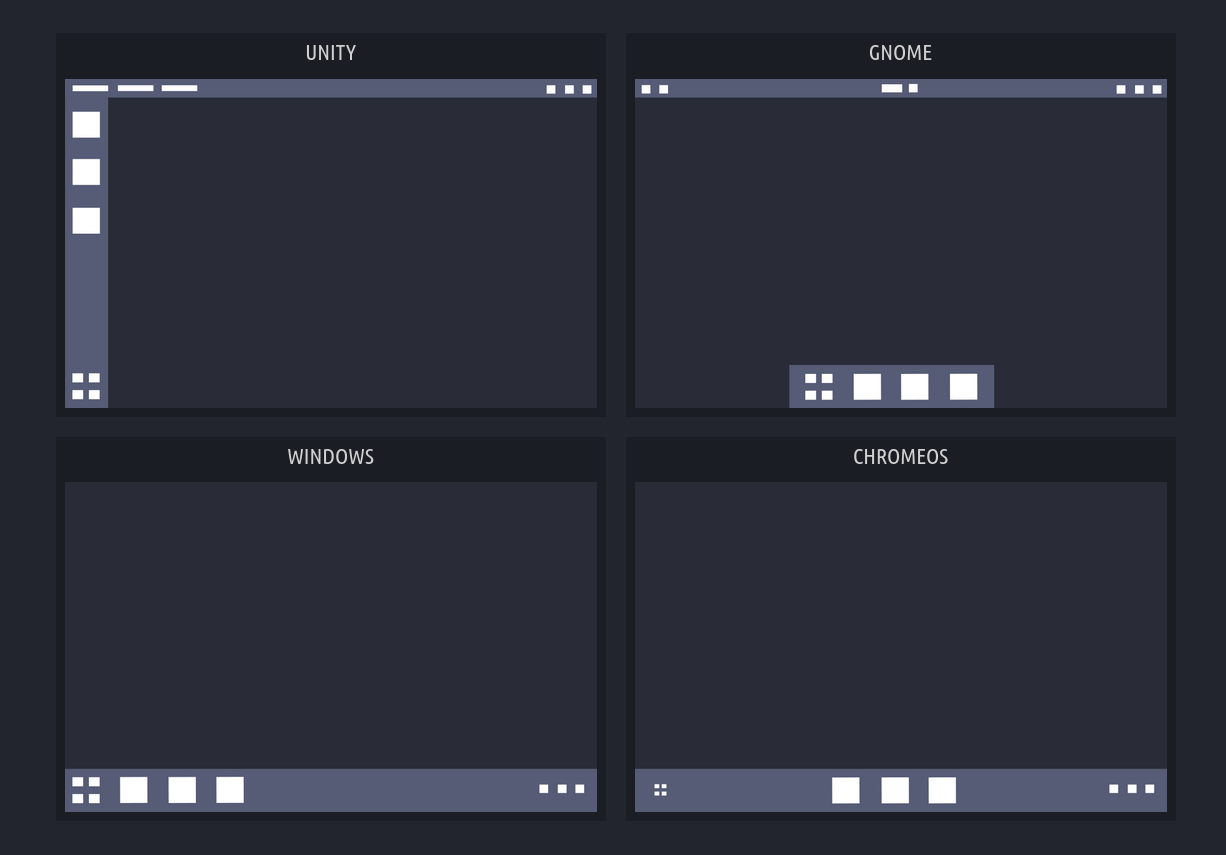
We are getting more serious about the layout switcher. So instead of TROMjaro Classic and Modern, we are now switching to multiple layouts that replicate most well known and diverse layouts in the operating systems’ world:

image1226×855 21.9 KB
These are the current 4 designs. Actually 5.
The Unity design. Replicating what Ubuntu introduced a few years ago called Unity. It was a great desktop layout and we’ve been using it with TROMjaro as default from the beginning. You have 2 options: with or without global menus. Just so that we please everyone.
Side note: we have moved the window buttons to the right side and we do not merge the top window bar with the top desktop panel when windows are maximized. Why? For one because the new theme that we use does not have a theme for the top panel buttons and we may end up with different window buttons; second is that for many new apps, especially Gnome ones, there is no top bar for windows to begin with…and XFCE is switching to those kind of windows too…so it makes no sense to do this. And third, because on multiple screen setups this was kinda strange. Since it was a bit of a trick, and when a window was maximized it was not displaying the top bar, then the top desktop panel had to display some window buttons so that you can still manage that maximized window. But on multiple screens if you lacked the top panel on one of your screens then you would end up with a window that has no window top bar or buttons on that particular screen. So you had to use the main screen to control a maximized window.
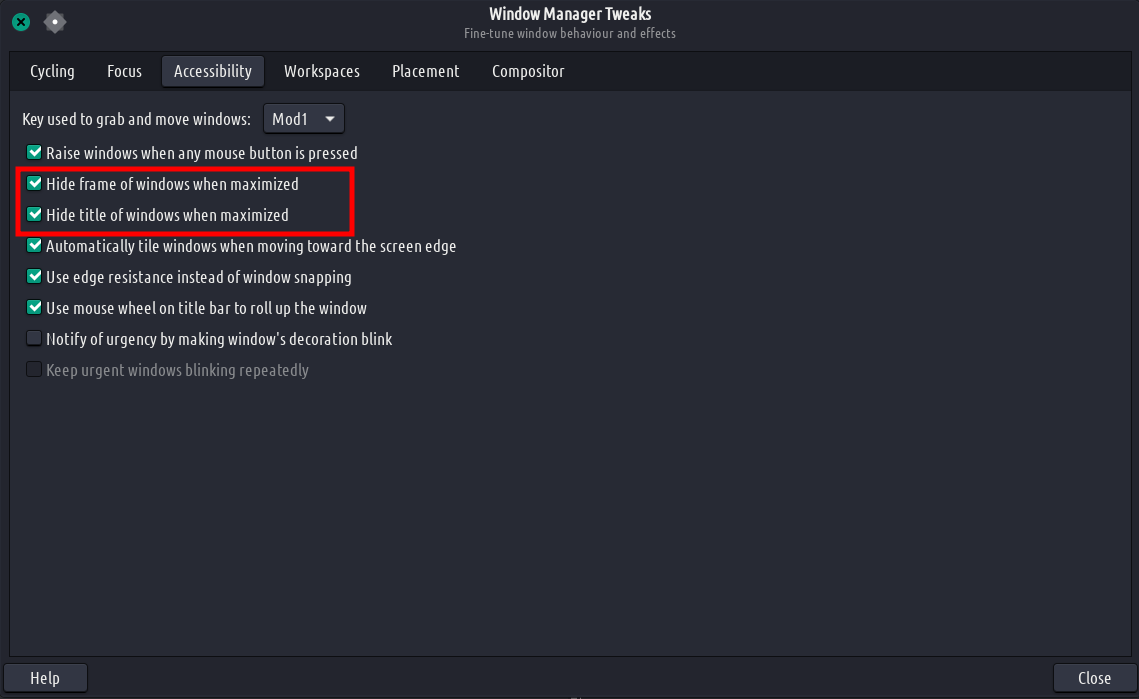
In any case, if you want to bring that back it is damn easy.
A. Right click the top panel and add a new item called: Window Header Buttons.
B. In Window Manager Tweaks select these two:

image1139×699 39.7 KB
Back to our Layout Switch:
image1226×855 21.9 KB
Top Left is Unity and you can have it with or without the global menus.
Gnome. With the bottom apps bar that auto-hides, top center clock, and all that.
Windows. Replicating as much as possible a Windows like layout. 1 single panel.
ChromeOS. Similar to the Windows layout but with the apps in the center.
These are the most diverse layouts out there and everything else seems to be a simple variation of these. For example if you want the Gnome layout but with the apps panel to the left and not bottom, all you have to do is right click the bottom panel and select it to be vertical, then move it to the left. I see no point at making any new layout if the differences between the new and the current are versions are very minute. But we may add new layouts in the future.
Ok. So how do you get this?
If you already have the TROMjaro Layout Switch then let’s properly remove that. Go to .local/bin/ and delete the TROMjaro Layout Switch file. Now go to your File System (open the file manager) and then to /usr/lib/vala-panel/. Open this folder as root (right click). See if there is any file called appmenu-registrar.OFF with the OFF at the end. If it is, delete it.
Now go back to .local/bin/ and create a new empty file. Name it layout-switch and add this to it:
<pre><code class="lang-auto">#! /bin/bash
choice=$(zenity --width=400 --height=275 --list --radiolist --title 'Layout Switch' --text 'Changing to or from any layout that has global menus, will require your admin password' --column 'Select' --column 'Layout' FALSE 'Windows-Like' FALSE 'Unity-Like with Global Menus (default)' FALSE 'Unity-Like' FALSE 'Gnome-Like' FALSE 'ChromeOS-Like')
case "$choice" in
'Windows-Like')
! pacman -Qq vala-panel-appmenu-registrar ||
zensu SKIP_AUTOSNAP= pacman -R --noconfirm vala-panel-appmenu-registrar ||
{ notify-send 'Error' 'failed removing vala-panel-appmenu-registrar !'; exit; }
pacman -Qq vala-panel-appmenu-registrar && exit
killall appmenu-registrar &
xfconf-query -c xfwm4 -p /general/borderless_maximize -n -t bool -s true &
xfconf-query -c xfwm4 -p /general/button_layout -n -t string -s "|HMC" &
xfce4-panel-profiles load ~/.local/share/tromjaro-layouts/Windows-Like.tar.bz2 & ;;
'Unity-Like with Global Menus (default)')
pacman -Qq vala-panel-appmenu-registrar ||
zensu SKIP_AUTOSNAP= pacman -S --noconfirm vala-panel-appmenu-registrar ||
{ notify-send 'Error' 'failed installing vala-panel-appmenu-registrar !\Enabling the internet connection might solve the issue'; exit; }
pacman -Qq vala-panel-appmenu-registrar || exit
xfconf-query -c xfwm4 -p /general/borderless_maximize -n -t bool -s true &
xfconf-query -c xfwm4 -p /general/button_layout -n -t string -s "|HMC" &
xfce4-panel-profiles load ~/.local/share/tromjaro-layouts/Unity-Like-Menus.tar.bz2 & ;;
'Unity-Like')
! pacman -Qq vala-panel-appmenu-registrar ||
zensu SKIP_AUTOSNAP= pacman -R --noconfirm vala-panel-appmenu-registrar ||
{ notify-send 'Error' 'failed removing vala-panel-appmenu-registrar !'; exit; }
pacman -Qq vala-panel-appmenu-registrar && exit
killall appmenu-registrar &
xfconf-query -c xfwm4 -p /general/borderless_maximize -n -t bool -s true &
xfconf-query -c xfwm4 -p /general/button_layout -n -t string -s "|HMC" &
xfce4-panel-profiles load ~/.local/share/tromjaro-layouts/Unity-Like.tar.bz2 & ;;
'Gnome-Like')
! pacman -Qq vala-panel-appmenu-registrar ||
zensu SKIP_AUTOSNAP= pacman -R --noconfirm vala-panel-appmenu-registrar ||
{ notify-send 'Error' 'failed removing vala-panel-appmenu-registrar !'; exit; }
pacman -Qq vala-panel-appmenu-registrar && exit
killall appmenu-registrar &
xfconf-query -c xfwm4 -p /general/borderless_maximize -n -t bool -s true &
xfconf-query -c xfwm4 -p /general/button_layout -n -t string -s "|HMC" &
xfce4-panel-profiles load ~/.local/share/tromjaro-layouts/Gnome-Like.tar.bz2 & ;;
'ChromeOS-Like')
! pacman -Qq vala-panel-appmenu-registrar ||
zensu SKIP_AUTOSNAP= pacman -R --noconfirm vala-panel-appmenu-registrar ||
{ notify-send 'Error' 'failed removing vala-panel-appmenu-registrar !'; exit; }
pacman -Qq vala-panel-appmenu-registrar && exit
killall appmenu-registrar &
xfconf-query -c xfwm4 -p /general/borderless_maximize -n -t bool -s true &
xfconf-query -c xfwm4 -p /general/button_layout -n -t string -s "|HMC" &
xfce4-panel-profiles load ~/.local/share/tromjaro-layouts/ChromeOS-Like.tar.bz2 & ;;
*) exit ;;
esac
## Reset panels and windows
xfce4-panel -r >/dev/null 2>&1
xfwm4 --replace &
xfce4-panel &
sleep 5 && notify-send "$choice was enabled"
</code></pre>
Save. Now right click the file, then properties, and then Permissions, and check “Allow this file to run as a program”.
Next go to .local/share/applications/ and search for a file named TROMjaro Layout Switch. Delete it. We do not need that. Create a new empty file in that folder called layout-switch.desktop and add these to it:
[Desktop Entry]
Version=1.1
Type=Application
Name=Layout Switch
GenericName=Layout Switch
Comment=Change how TROMjaro looks like. Make it look like Unity, Windows, Gnome, and so forth.
Icon=layout-switch
Exec=layout-switch
Categories=DesktopSettings;GTK;Settings;X-XFCE-PersonalSettings;X-XFCE-SettingsDialog;XFCE;
Keywords=settings;layout;toggle;switch;
Now we should add a custom icon for the app. Grab it from
here and put it into the folder
.local/share/icons/Zafiro/apps/scalable/.
Lastly you have to grab the profiles that we have created from here and add them all in .local/share/ in a folder called tromjaro-layouts.
That’s it!
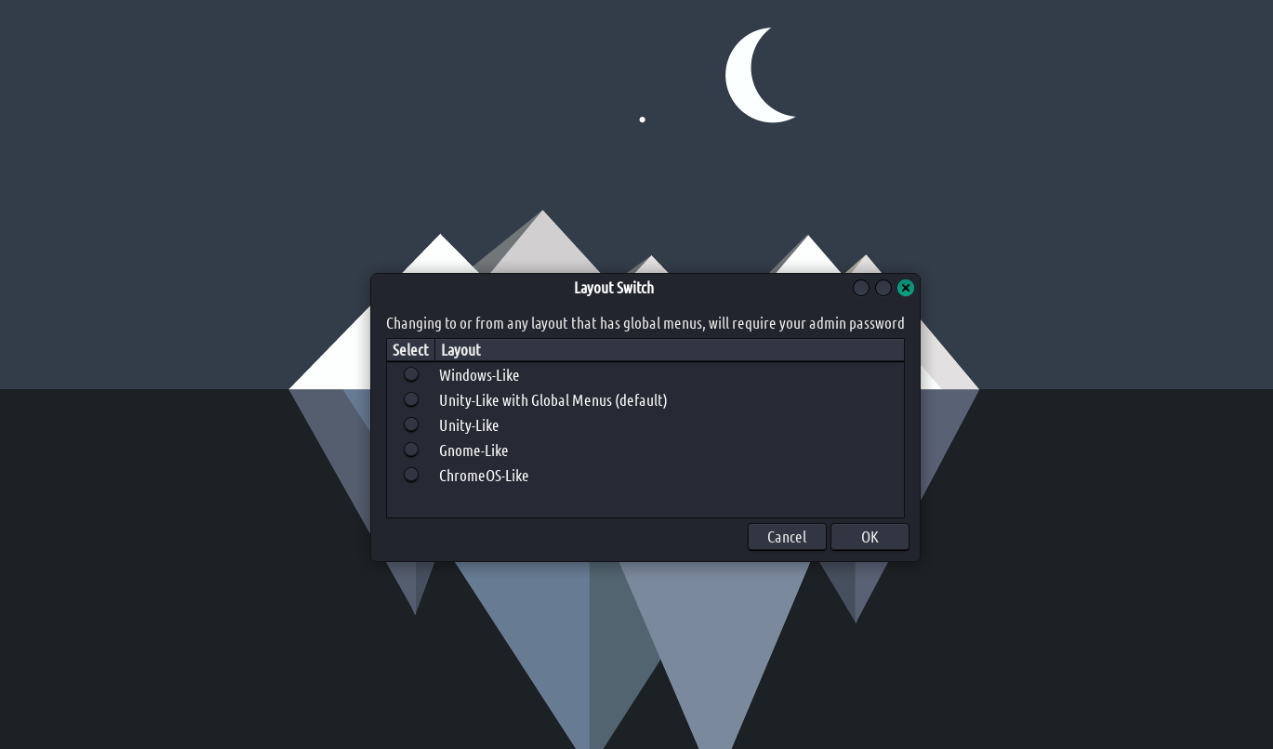
Now you can find the Layout Switch app in your apps and in the Settings Manager. It looks like this:

image1273×749 63 KB
Here it is in action:
/uploads/default/original/1X/249dc5de5b5ef5727114082964c67becfb8e92f2.mp4
Fix what Gnome is breaking
This is a big topic and I am not going into it right now. You can read more about it here. But basically Gnome is pushing a new way to create apps for their Gnome desktop, and this basically forces these apps to have 2 themes, the ones of Gnome, on every system. Dark and Light. So when any of these apps update to this new Gnome workflow, they look like this on any system:

365261818561e1b69fbe2f71905900201781×1003 250 KB
They do not respect the theme at all. Not the theme, not the buttons. Imagine having 3 buttons for your window system, to the left side, in a particular order. Well these new apps do not give a shit and will have their defaults, like say 1 button to the right. This is infuriating since it breaks the way the Linux system works in terms of usability. If I want a particular theme then every app should respect that. With TROMjaro we struggled to make pretty much 95% of all apps out there, if not more, respect the system’s theme. This is a greater consistency than Pop OS, Ubuntu, KDE Plasma, and most other distros. Read more here.
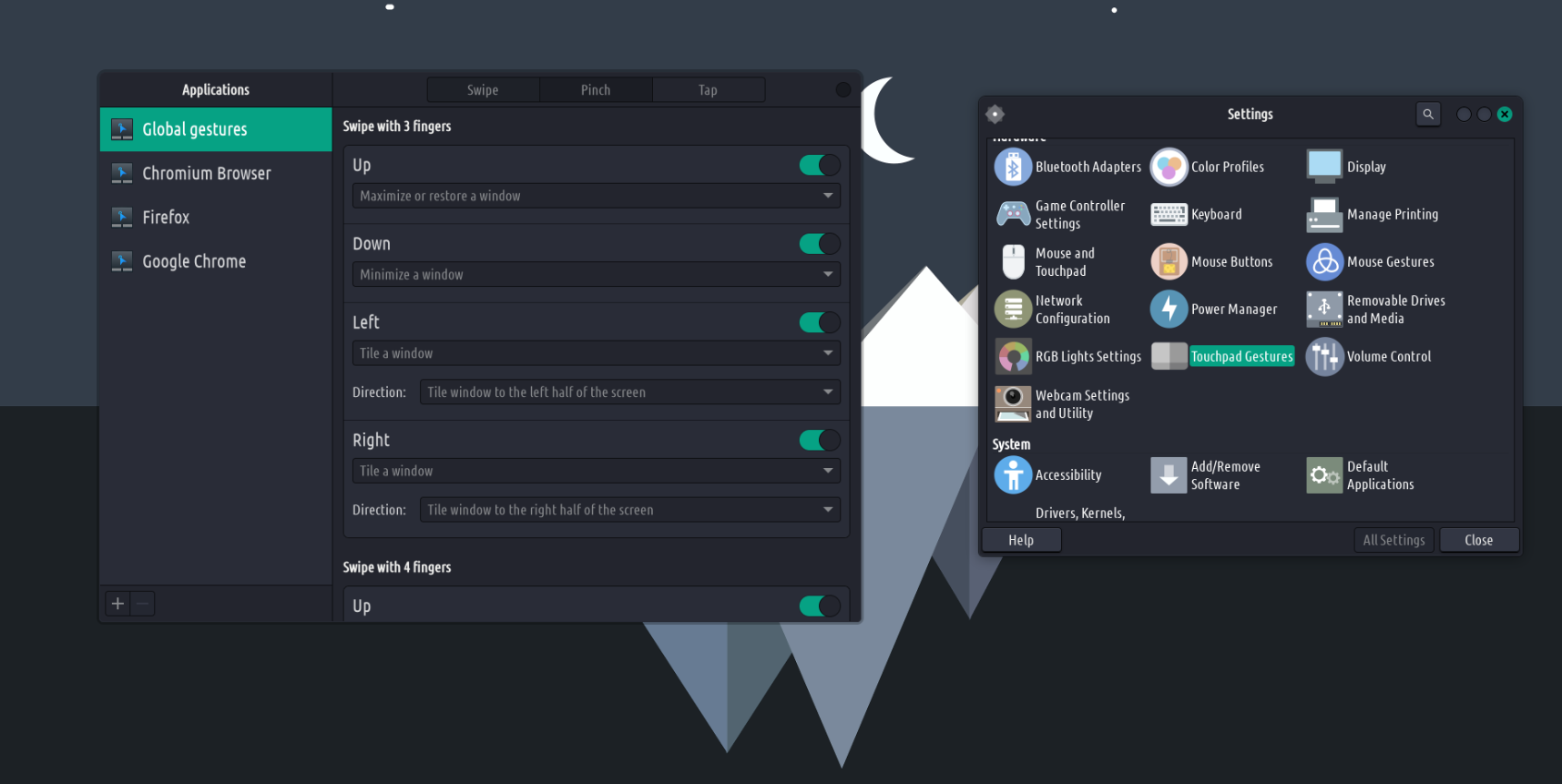
But we found a hack. At least for now. And that white sheep from the above photo looks like this with our hack:

image1715×861 171 KB
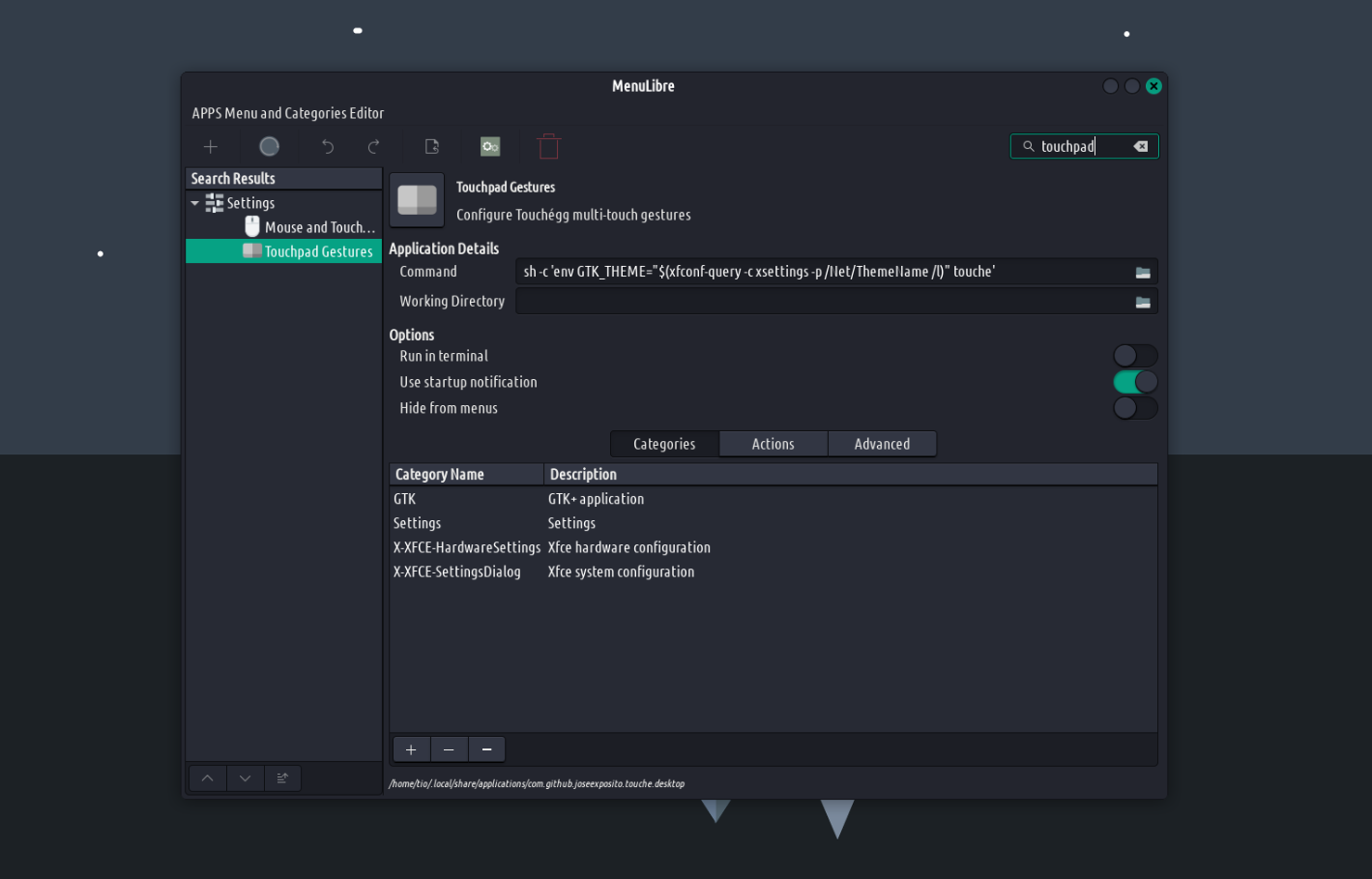
It respects the theme as it should! However not the window buttons position and type… In this example we are talking about the Touchpad Gestures app, originally named Touche. To fix it go to Menu Editor and search for it. Then in the Command box add this:
sh -c 'env GTK_THEME="$(xfconf-query -c xsettings -p /Net/ThemeName /l)" touche'

image1419×909 106 KB
And save (circle blue button the the left).
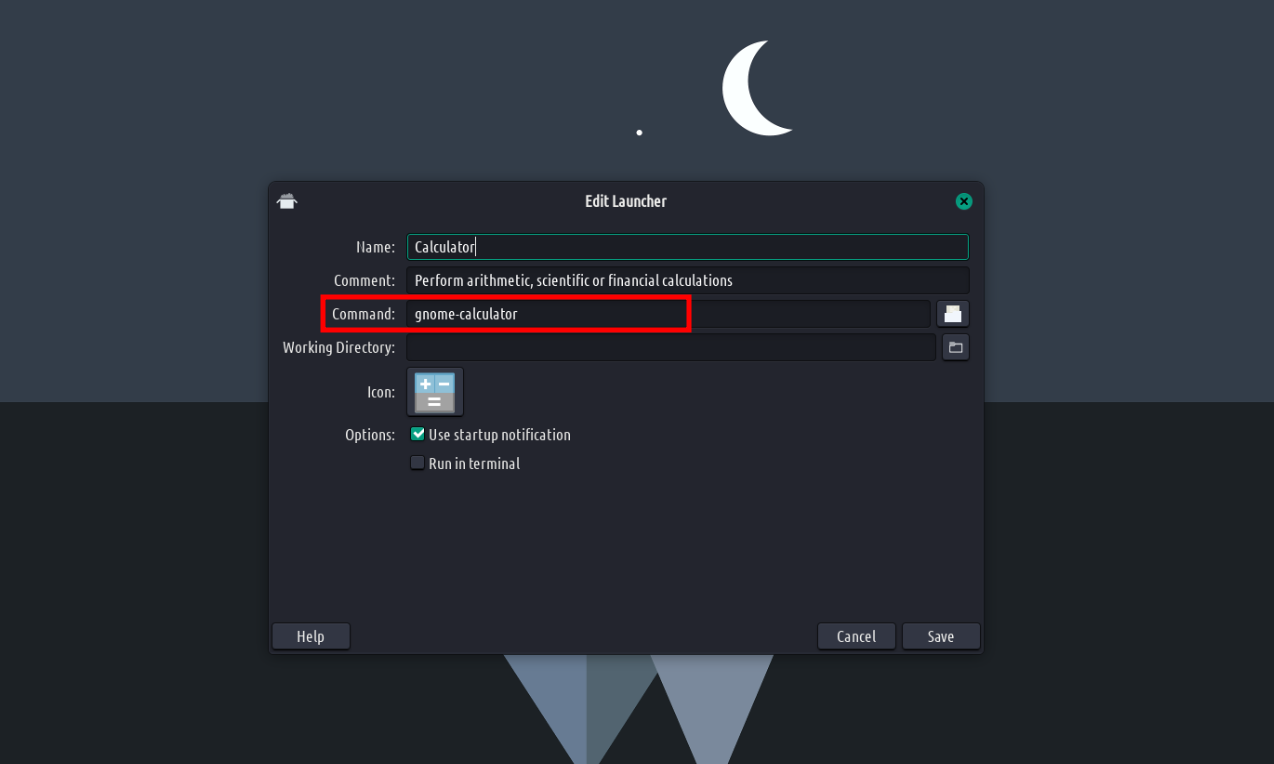
From now on, if you see any app that is not respecting the theme, try to do just that. Say the Gnome Calculator that we have installed as default in TROMjaro will switch to this new Gnome workflow. Search for it in the Menu Editor or simply from the apps menu right click it and edit. See how it is called in the Command box:

image1274×764 47.3 KB
Then add the above code sh -c 'env GTK_THEME="$(xfconf-query -c xsettings -p /Net/ThemeName /l)" touche' and replace touche with that name. Such as sh -c 'env GTK_THEME="$(xfconf-query -c xsettings -p /Net/ThemeName /l)" gnome-calculator' .
We will try to fix more and more such apps, but it is not ok…for now at least we found a hack…
Add the App Finder back.
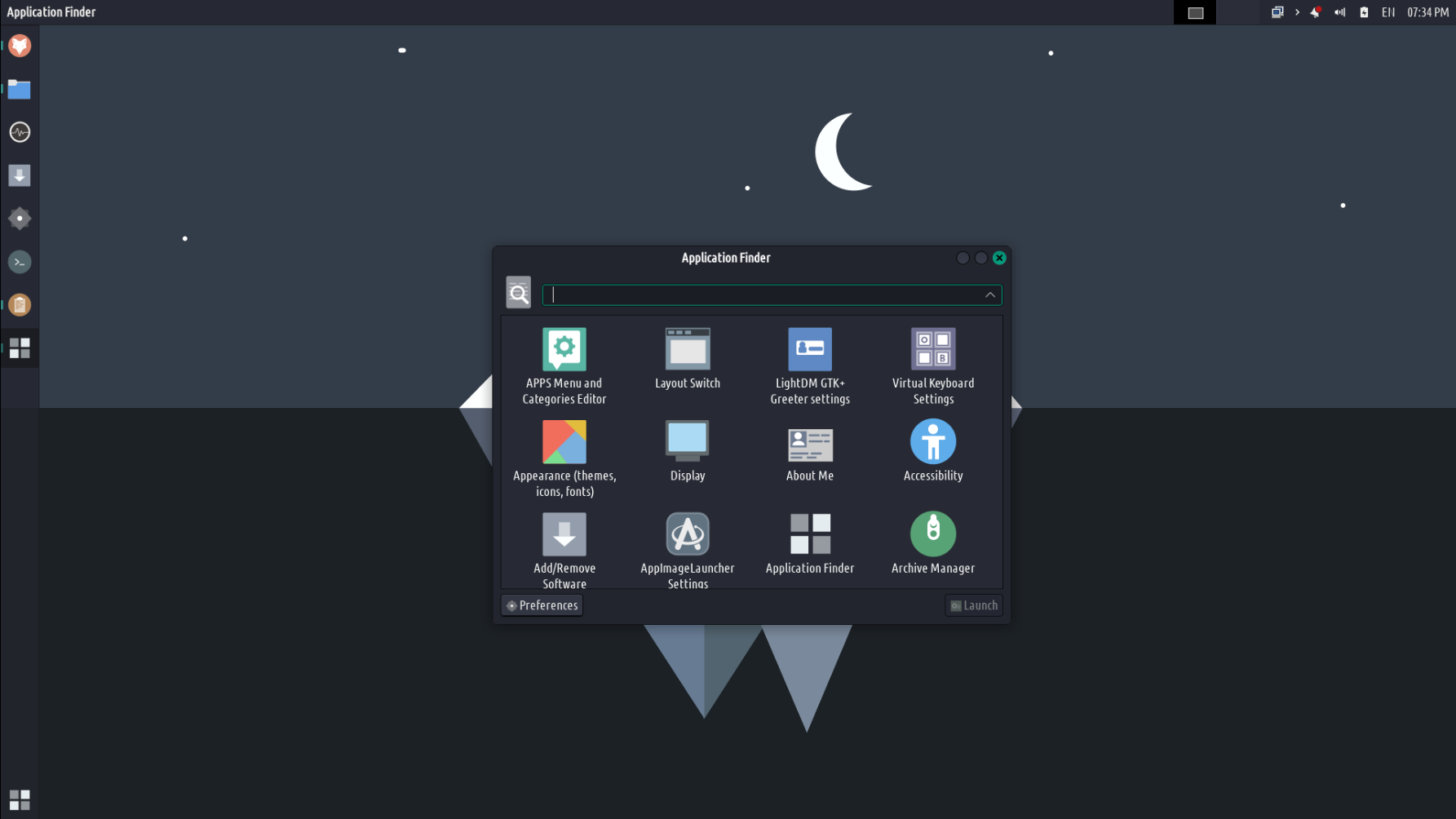
We added back the useful xfce4-appfinder. The apps menu that you see on the panels is very useful, but for keyboard centric humans it is useful to press a keyboard key and have the apps and a search bar to the center of the screen, as such:

image1785×1004 94.1 KB
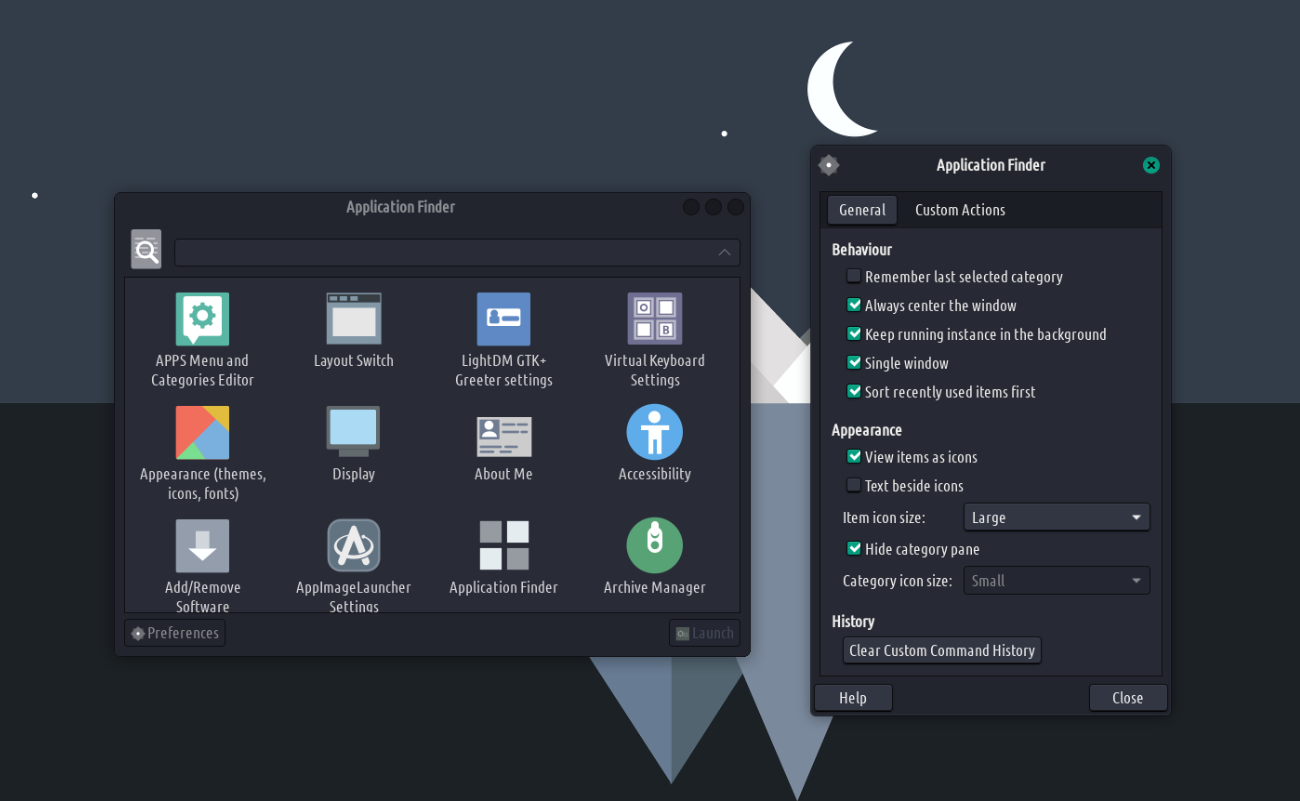
To use the same layout click the preferences button then do these:

image1300×801 125 KB
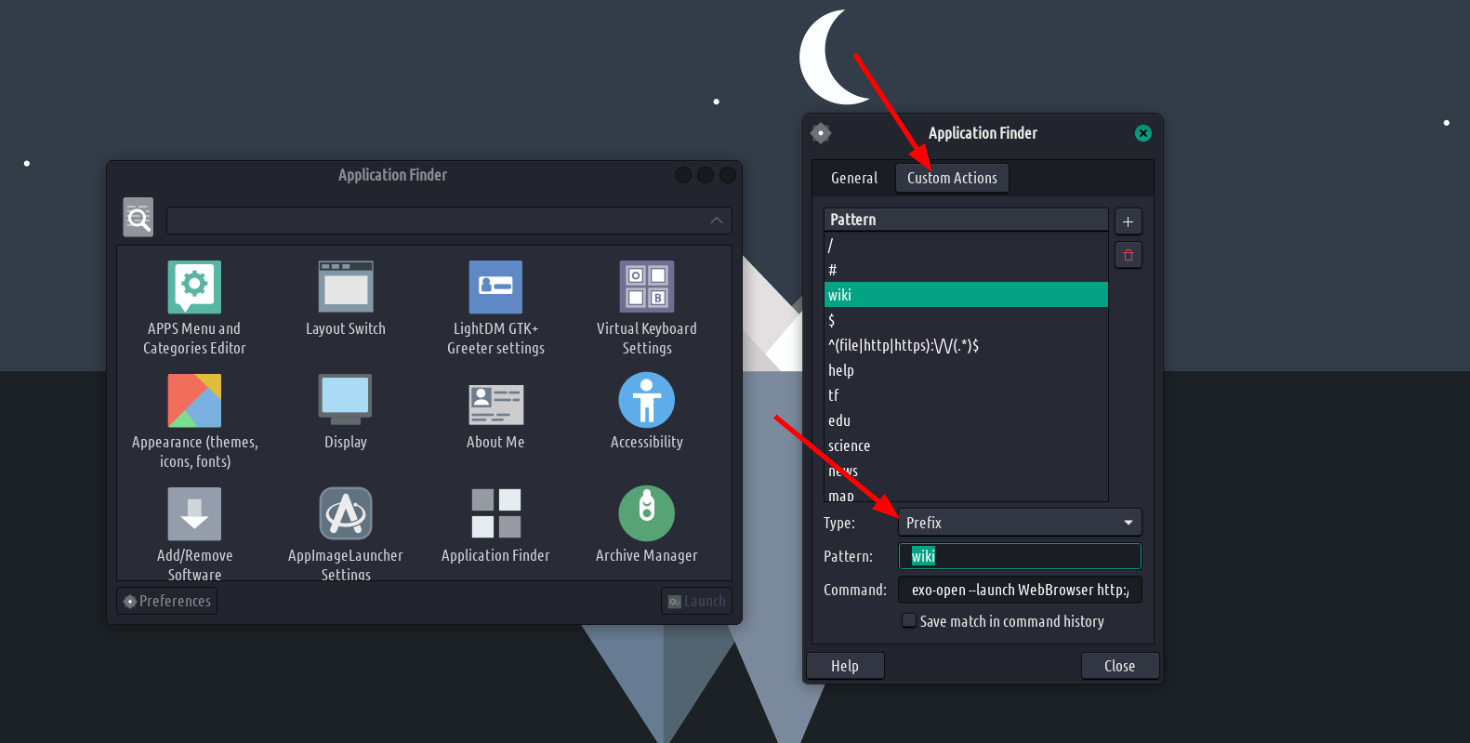
We have also integrated the custom searches that you can find in the apps menu and can read more about here. Here they are (all have to be added with Type - Prefix as such):

image1470×743 114 KB
<pre><code class="lang-auto"> wiki
exo-open --launch WebBrowser en.wikipedia.org/wiki/%s
</code></pre> <pre><code class="lang-auto"> help
exo-open --launch WebBrowser forum.tromjaro.com/search?q=%s
</code></pre> <pre><code class="lang-auto"> tf
exo-open --launch WebBrowser directory.trade-free.org/?s=%s
</code></pre> <pre><code class="lang-auto"> edu
exo-open --launch WebBrowser videoneat.com/?s=%s
</code></pre> <pre><code class="lang-auto"> science
exo-open --launch WebBrowser search.trom.tf/search?q=%s&…
</code></pre> <pre><code class="lang-auto"> news
exo-open --launch WebBrowser search.trom.tf/search?q=%s&…
</code></pre> <pre><code class="lang-auto"> map
exo-open --launch WebBrowser maps.trom.tf/#q=%s
</code></pre> <pre><code class="lang-auto"> download
exo-open --launch WebBrowser search.trom.tf/search?q=%s&…
</code></pre> <pre><code class="lang-auto"> image
exo-open --launch WebBrowser search.trom.tf/search?q=%s&…
</code></pre> <pre><code class="lang-auto"> video
exo-open --launch WebBrowser ytb.trom.tf/search?q=%s
</code></pre> <pre><code class="lang-auto"> files
catfish --path=~ --start %s
</code></pre> <pre><code class="lang-auto"> web
exo-open --launch WebBrowser search.trom.tf/search?q=%s
</code></pre>
Making the terminal super cool.
Although TROMjaro does not rely on the terminal, why not have a great one anyway!?
You can read here all of the cool stuff about this:
Colors
Colors are enabled by default where possible so that its easy on your eyes. Pacman command & Man pages will now be colorful and easier to read 
Syntax highlighting
Syntax highlighting is enabled by default in zsh, this makes your command line very user friendly 
vim keybindings
There is an optional vim mode for users who like vim keybindings. This setting is disabled my default, but you can easily enable it by uncommenting the line that says vim_mode=True.
Maia prompt
The new prompt in zsh is simplistic and user friendly. It also gives you info about the exit status of the previous command. If the command completed successfully, it’ll look normal but if the previous command completed with errors then your prompt shows red, and at the right edge of your terminal you can see the exit status inside square brackets [].
Powerful history management
- History beginning search is enabled by default, that means if you type something like
echo in the terminal and then press the up arrow, it’ll search for previous commands from your history that starts with echo and move through them. If you don’t type anything or if your cursor is at the beginning of the prompt, then moving up through history works like normal. If you want, you can override this behavior even when you have something typed - just press shift + up arrow instead of simply up arrow. All of these same things apply to the down arrow as well ofc 
- Duplicate entries won’t be saved in history, this will reduce storage space and make it easier to browse through your history. Also, commands starting with a space won’t be saved in history, this can be useful for you in situations where you don’t want a command to be saved in history.
Automatically cd into typed directory
You can move to a directory just by typing the name of it, no need to precede it with the cd command before it. This makes it a little bit faster for you to navigate inside the terminal.
Online cheat sheet !
We’ve added a function called chtsh in zsh that uses the cheat.sh/c/releases.rss project to get a cheat sheet of the commands you want. For example, if you wanna know the basics of the command ffmpeg, you can just type chtsh ffmpeg to get a cheat sheet showing you the most common use cases of that program. Please note that this requires an internet connection to work.
Aliases
We’ve added in some aliases by default that we think are useful. cp & mv commands will prompt you before overwriting a file, and rm will prompt you once before removing more than 3 files, or when removing recursively - This is to prevent users from accidentally doing something they don’t want. ls, df & du commands will use human-readable sizes. Commands are also Colorized where possible
Auto-completion
- Advanced tab completion - This is an amazing feature, but its a little hard to explain in words. Try typing
ls in your terminal followed by a space, then press the tab key twice to get inside the menu. Now you’re free to move around this menu using arrow keys ! When you find the file/folder you want, just press enter to type it out. - You may have noticed this already, but tab completion is case insensitive and would also include hidden files. This makes it more user friendly.
zsh-autosuggestions plugin will show you automatic suggestions from your history based on the words you type. If its showing you the correct suggestion you want, just press the right arrow key and it’ll automatically type that out for you.
And here’s how to do it. Step by step.
1. Change cursor shape & colors like shown in this video:
/uploads/default/original/1X/346586012bafd683dd7ff6a5bc5c8cc0e61d3747.webm
2. Create a file in your home directory called “.zshrc”.
Make sure it has that dot in front of the name. Add this to the file:
<pre><code class="lang-auto">
`# Enable vi mode - you can uncomment the line below to enable vim keybindings`
`#vim_mode=True`
``
`# Enable colors and change prompt:`
`autoload -U colors && colors # Load colors`
`# Maia prompt`
`PROMPT="%B%{$fg[cyan]%}%(4~|%-1~/.../%2~|%~)%u%b >%{$fg[cyan]%}>%B%(?.%{$fg[cyan]%}.%{$fg[red]%})>%{$reset_color%}%b "`
`RPROMPT="%{$fg[red]%} %(?..[%?])"`
``
`setopt autocd # Automatically cd into typed directory.`
`stty stop undef # Disable ctrl-s to freeze terminal.`
`setopt interactive_comments`
``
`# Enable command history`
`HISTFILE=~/.zsh_history`
`HISTSIZE=10000000`
`SAVEHIST=10000000`
`setopt histignorealldups # Ignore duplicates in history`
`setopt HIST_IGNORE_SPACE # Ignore commands that begin with a space in history`
``
`# Online cheat sheet`
`chtsh () {`
`
ping -c 1 cheat.sh >/dev/null 2>&1 || { echo 'Cannot connect
to cheat.sh !\nCheck your internet connection'; return 1 }`
`
curl -s "cheat.sh/$1" | less -P "\ Cheat\ sheet\ ?ltline\ %lt?L/%L.:
byte\ %bB?s/%s..?\ (END):?pB\ %pB\\%.. (press h for help or q to quit)"`
`}`
``
`# Aliases`
``
`alias cp="cp -iv" # Prompt before overwrite`
`alias mv="mv -iv" # Prompt before overwrite`
`alias rm="rm -vI" # Prompt once before removing more than 3 files, or when removing recursively`
`alias ffmpeg="ffmpeg -hide_banner" # Suppress printing banner`
`alias df="df -h" # human-readable sizes`
`alias du="du -h" # human-readable sizes`
``
`# Colorize commands when possible`
`alias ls="ls -h --color=auto --group-directories-first" # human-readable sizes, group directories before files`
`alias grep="grep --color=auto"`
`alias egrep="egrep --colour=auto"`
`alias fgrep="fgrep --colour=auto"`
`alias diff="diff --color=auto"`
`alias pacman="pacman --color=auto"`
``
`# Basic auto/tab complete:`
`autoload -U compinit`
`zstyle ':completion:*' menu select`
`zmodload zsh/complist`
`compinit`
`_comp_options+=(globdots) # Include hidden files.`
`zstyle ':completion:*' matcher-list 'm:{a-zA-Z}={A-Za-z}' # Case insensitive tab completion`
`source /usr/share/zsh/plugins/zsh-autosuggestions/zsh-autosuggestions.plugin.zsh 2>/dev/null`
``
`# Change cursor shape for different vi modes.`
`function zle-keymap-select () {`
` case $KEYMAP in`
` vicmd) echo -ne '\e[2 q';; # block`
` viins|main) echo -ne '\e[6 q';; # beam`
` esac`
`}`
`zle-line-init() {`
` zle -K viins # initiate `vi insert` as keymap (can be removed if `bindkey -V` has been set elsewhere)`
` echo -ne "\e[6 q"`
`}`
``
``
`[ "$vim_mode" = 'True' ] &&`
` { bindkey -v`
` export KEYTIMEOUT=1`
` bindkey -v '^?' backward-delete-char`
` zle -N zle-keymap-select`
` zle -N zle-line-init`
` echo -ne '\e[6 q' # Use beam shape cursor on startup.`
` preexec() { echo -ne '\e[6 q' ;} # Use beam shape cursor for each new prompt.`
``
` # Use vim keys in tab complete menu:`
` bindkey -M menuselect 'h' vi-backward-char`
` bindkey -M menuselect 'k' vi-up-line-or-history`
` bindkey -M menuselect 'l' vi-forward-char`
` bindkey -M menuselect 'j' vi-down-line-or-history`
`}`
`unset vim_mode`
``
`# History beginning search`
`bindkey '^[[A' history-beginning-search-backward`
`bindkey '^[[B' history-beginning-search-forward`
`bindkey '^[[1;2A' up-line-or-history`
`bindkey '^[[1;2B' down-line-or-history`
`bindkey -a '^[[A' history-beginning-search-backward`
`bindkey -a '^[[B' history-beginning-search-forward`
`bindkey -a 'k' history-beginning-search-backward`
`bindkey -a 'j' history-beginning-search-forward`
`bindkey -a 'K' vi-up-line-or-history`
`bindkey -a 'J' vi-down-line-or-history`
``
`bindkey '^[[3~' delete-char; bindkey -a '^[[3~' delete-char # Make delete key work as expected`
``
`# Load syntax highlighting; should be last.`
`source /usr/share/zsh/plugins/zsh-syntax-highlighting/zsh-syntax-highlighting.plugin.zsh 2>/dev/null`
</code></pre>
3. Add the following lines to /.profile file (don’t remove what’s already there):
<pre><code class="lang-auto"># Show color output in less
export LESS=-R
export LESS_TERMCAP_mb=$'\e[1;31m'
export LESS_TERMCAP_md=$'\e[1;36m'
export LESS_TERMCAP_me=$'\e[0m'
export LESS_TERMCAP_so=$'\e[01;44;33m'
export LESS_TERMCAP_se=$'\e[0m'
export LESS_TERMCAP_us=$'\e[1;32m'
export LESS_TERMCAP_ue=$'\e[0m'
</code></pre>
4. Now to switch from bash to zsh.
Make sure the zsh package is installed on your machine (via Add/Remove Software). If it is not, install it. Then open the Terminal and paste this:
chsh -s /bin/zsh
Hit Enter. Restart your computer to be sure it will change it.
5. Install two packages:
zsh-syntax-highlighting and zsh-autosuggestions from the same Add/Remove Software.
Lastly, a few other changes…
- Reinstall the package
openrgb if it doesn’t work. Find it in Add/Remove Software, click it, then click reinstall. - Add the
tlp package via the same Add/Remove Software.
2 posts - 1 participant
Read full topic


 . So now we have a proper Layout Switch app. Click any and apply it. How awesome. And all done with the power of XFCE!




Rokosun
in reply to TROM • • •TROM
in reply to Rokosun • •